How I Migrated from WordPress to Astro in 2026 (and Hit a Perfect 100 Lighthouse Score)
The exact process I used to migrate a WordPress site to Astro: exporting content, converting templates, deploying to Cloudflare Pages, and ending up with a 100/100 Lighthouse score. Step-by-step with pitfalls.
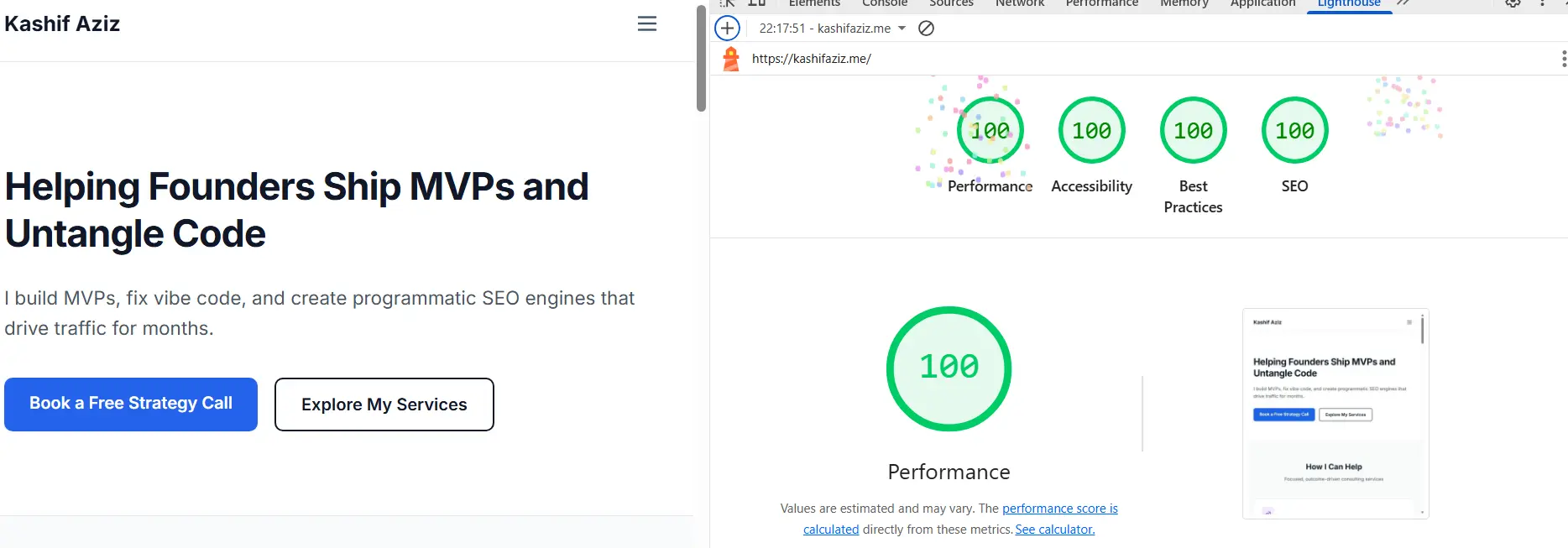
After years of running my profile and blog on WordPress, I reached a point where the platform itself wasn’t the problem, but the trade-offs were. Performance plateaued in the 70–80 Lighthouse range despite aggressive optimization. Ongoing maintenance consumed hours every month. And SEO improvements increasingly meant layering more plugins rather than simplifying the system.
To be clear, WordPress can perform well. With full-page caching, a CDN, and careful configuration, it’s possible to serve largely static content and avoid PHP execution on most requests. I had all of that in place. But pushing beyond “good enough” required constant tuning, careful plugin selection, and regular regression testing whenever anything changed.
The same pattern appeared with SEO. WordPress offers excellent tooling, but most SEO features live in plugins. Meta tags, structured data, sitemaps, and previews all worked, but only after configuration, overrides, and ongoing maintenance to keep everything aligned. The system was flexible, but also fragile.
Astro approaches these problems differently. Its static-first model makes HTML the default output, not an optimization target. Pages are built once, shipped as plain files, and deployed globally without runtime dependencies. That architectural shift eliminated entire classes of performance and SEO issues rather than optimizing around them.
This post walks through why I migrated from WordPress to Astro, the specific pain points I encountered along the way, and how a static-first architecture changes your approach to performance, SEO, and long-term maintenance (without pretending WordPress is the villain).
The Breaking Point: Why Leave WordPress?
WordPress has been the backbone of millions of websites for over two decades. It’s reliable, has an enormous plugin ecosystem, and powers everything from personal blogs to enterprise sites. But after years of using it for my personal site, I hit a wall that many developers eventually face: the architecture that makes WordPress flexible also makes it expensive to maintain at the performance level I wanted.
The Performance Ceiling
Performance was the most visible issue. Even with caching plugins, CDN distribution, optimized images, and a carefully tuned theme, the site never broke past 70–80 on Lighthouse Performance scores.
The problem wasn’t what caching could fix. It was what it couldn’t. Caching plugins eliminated database queries and PHP execution overhead on repeat visits, serving cached HTML efficiently. But they couldn’t address the frontend bloat. Even cached pages still loaded hundreds of kilobytes of JavaScript before content was visible: jQuery (required by most themes), theme scripts, analytics code, social sharing widgets, comment systems, and more.
For blog posts that hadn’t changed in months, this JavaScript overhead was unnecessary weight that caching fundamentally couldn’t eliminate. The content was static, but the delivery mechanism wasn’t.
Page load times hovered around 3.2 seconds on first visit, improving to roughly 1.8s with caching. Good enough for most users, but far from excellent. And every performance improvement required another plugin, another configuration layer, another thing to maintain.
Maintenance Overhead Was Consuming Time
Beyond performance, the maintenance burden kept growing. WordPress requires constant attention: security updates roll out frequently (which is necessary), but they often break plugin compatibility. I found myself spending 4-6 hours monthly on:
- Testing plugin updates in staging before deploying to production
- Fixing broken functionality after WordPress core updates
- Managing database backups and recovery procedures
- Monitoring for security vulnerabilities across 15+ plugins
- Troubleshooting hosting provider issues related to PHP versions and MySQL performance
The plugin ecosystem, while powerful, created fragile dependency chains. One plugin update could break another. The breaking point came when a Yoast SEO update conflicted with my caching plugin, taking the site down for three hours while I rolled back changes and found a workaround. For a personal blog receiving modest traffic, this maintenance overhead was difficult to justify.
Across a year, I was spending 50-60 hours just keeping the site healthy (not improving it, not adding content, just maintaining stability).
Developer Experience Didn’t Match Modern Workflows
As someone who works primarily in Python but maintains competency across the full stack, I wanted tooling that matched modern engineering workflows: type safety, component architecture, version-controlled content, predictable builds, and instant deployments. WordPress’s PHP-based model wasn’t designed for this, and the workarounds to make it fit were increasingly expensive in time and complexity.
The development workflow involved:
- Setting up local PHP environments with specific versions
- Managing database dumps to sync content between environments
- Working within WordPress’s templating system instead of modern component patterns
- Limited ability to use modern build tools and type checking
- Difficult version control for content changes (everything lived in the database)
I wanted to write in MDX, use TypeScript for type safety, build reusable components, and treat my site like a codebase rather than a database-backed application. WordPress’s architecture made this difficult. The gap between how I wanted to work and how WordPress required me to work was widening.
Cost Was Adding Up
While WordPress itself is free, the true cost of running a WordPress site adds up quickly. Hosting for dynamic PHP/MySQL applications is more expensive than static hosting. Premium plugins for essential features, CDN services to mitigate performance issues, security plugins and monitoring services, and backup solutions all contribute to the total cost of ownership. For a personal blog, these costs were adding up to more than I wanted to spend, especially when I knew a static site could deliver better performance at a fraction of the cost.
The Final Straw
The decision crystallized when I ran another Lighthouse audit and saw scores that didn’t reflect the effort I was putting into optimization. Despite caching, CDN, image optimization, and premium performance plugins, I was stuck at 78 Performance, 89 SEO, 92 Best Practices. The site was “good enough” but not excellent, and I knew the content deserved better delivery.
The question became: what would a modern, fast, maintainable version of my site look like if I could start fresh?
That’s when I started evaluating static site generators.
Discovering Astro And Why It Made Immediate Sense
I didn’t jump straight to Astro. I evaluated several options, each with their own strengths and trade-offs.
Next.js is a powerful React framework with excellent developer experience, but it’s optimized for applications, not content sites. Even with static generation, the JavaScript bundle size would still be significant.
Gatsby works well for content sites with its GraphQL data layer, but build times can be slow, and it still ships considerable JavaScript to the client.
Hugo is blazingly fast and written in Go, but the templating system and lack of component reusability didn’t appeal to me.
11ty (Eleventy) is simple, flexible, and truly static. Very appealing, but the ecosystem is smaller, and I wanted something with more momentum and TypeScript support.
Astro was the relative newcomer with a fundamentally different philosophy: zero JavaScript by default.
Why Astro’s Philosophy Clicked
When I started evaluating options, every framework had strengths. But Astro had a core idea that instantly made sense: ship zero JavaScript by default.
That one principle eliminates an entire category of performance problems. Unlike frameworks that ship React or Vue to the browser even when you don’t need interactivity, Astro only sends JavaScript when you explicitly opt in. A static blog post stays static. No hydration, no runtime, no framework overhead.
The Islands Architecture made this practical. Instead of hydrating an entire page with JavaScript, Astro lets you create interactive “islands” that load independently. A blog post with one interactive component only loads JavaScript for that component, not for the entire page. The rest stays pure HTML.
Beyond the JavaScript philosophy, Astro’s technical foundation matched what I wanted. I could write content in MDX (Markdown with components), giving me the simplicity of Markdown with the power of React components when needed. Content Collections provided type-safe content management with Zod schemas, catching errors at build time instead of runtime. TypeScript support was first-class throughout. The framework was agnostic about UI libraries, so I could use React, Vue, Svelte, or plain HTML components in the same project. And the developer experience was excellent: fast builds, hot module replacement, modern tooling.
Astro wasn’t just fast out of the box. It enforced patterns that produced fast sites without constant optimization. No performance firefighting. No trimming JavaScript bundles. No worrying about runtime overhead.
It felt like a framework designed for the web we should be building now, not the web we built a decade ago.
For a content-heavy blog with occasional interactivity, Astro was the clear choice. It gave me performance by default, modern development experience, type safety for content, and the flexibility to add interactivity where needed without compromising the entire site.
Designing the New Architecture
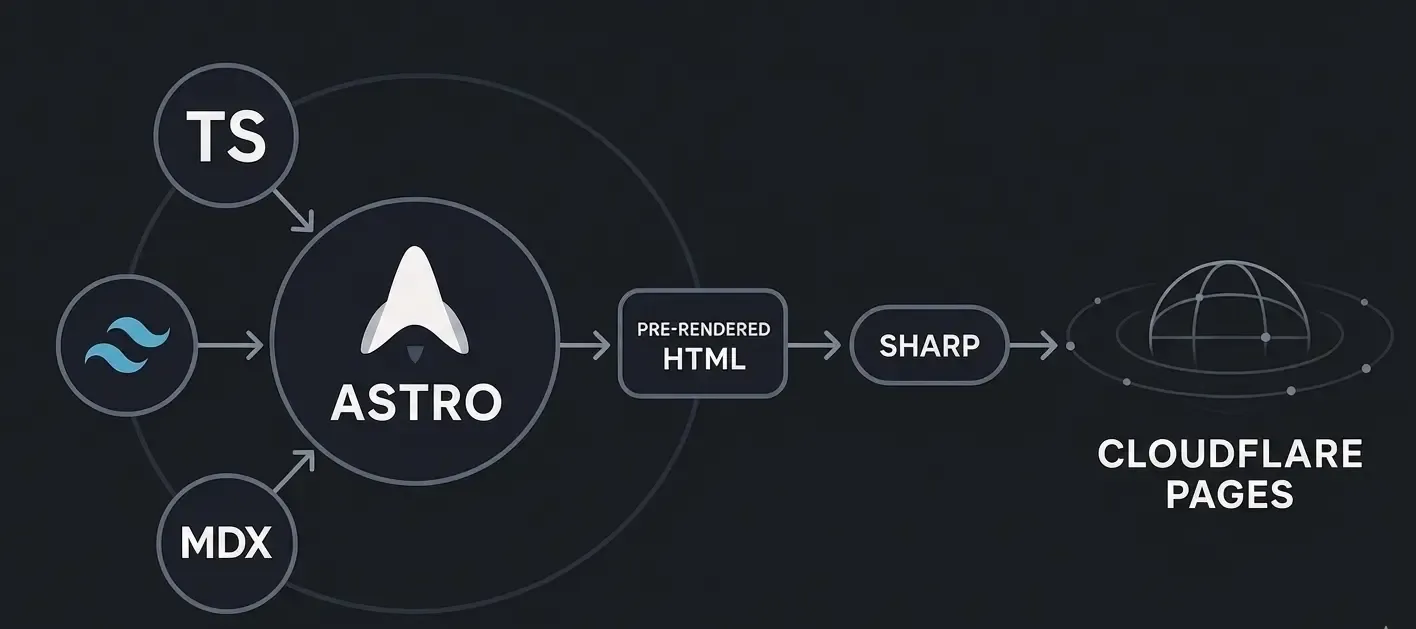
I wanted the new site to be fast, predictable, and long-term maintainable. That meant eliminating runtime complexity and relying on build-time everything.
Before diving into the migration, let me walk you through the architecture I built. Understanding the system design is crucial for anyone considering a similar move.
Project Structure
Astro’s file-based routing and content collections create a clean, predictable structure:
kashif-blog/
├── src/
│   ├── components/         # Reusable Astro components
│   │   ├── Header.astro
│   │   ├── Footer.astro
│   │   └── NewsletterCTA.astro
│   ├── content/            # Content collections
│   │   ├── blog/          # Blog posts as MDX files
│   │   └── config.ts      # Zod schema for type safety
│   ├── layouts/            # Page layouts
│   │   └── BaseLayout.astro  # Main layout with SEO
│   ├── pages/              # File-based routing
│   │   ├── index.astro    # Homepage
│   │   ├── blog/
│   │   │   ├── index.astro      # Blog listing
│   │   │   └── [...slug].astro  # Individual posts
│   │   ├── rss.xml.ts     # RSS feed generator
│   │   ├── sitemap.xml.ts # Sitemap generator
│   │   └── robots.txt.ts  # Robots.txt generator
│   ├── styles/            # Global styles
│   └── utils/             # Utility functions
│       └── rehype-external-links.ts  # Auto-add security to external links
├── public/                # Static assets
│   └── images/
└── dist/                  # Build output
This structure provides clear separation of concerns, type-safe content management, automatic routing based on file structure, and easy deployment with static output.
Content Collections: Type-Safe Markdown
One of Astro’s killer features is Content Collections. Instead of treating content as unstructured files, Astro lets you define schemas that validate content at build time.
Here’s the schema I defined:
// src/content/config.ts
import { defineCollection, z } from 'astro:content';

const blog = defineCollection({
  type: 'content',
  schema: z.object({
    title: z.string(),
    description: z.string(),
    pubDate: z.coerce.date(),
    author: z.string().default('Kashif Aziz'),
    category: z.string().optional(),
    readTime: z.string().optional(),
    tags: z.array(z.string()).optional(),
    image: z.string().optional(),
    imageAlt: z.string().optional(),
  }),
});

export const collections = { blog };
This schema ensures every blog post has required fields, validates data types, and provides autocomplete in my editor. If I forget a required field or use the wrong type, the build fails with a clear error message.
This gave me confidence that content wouldn’t break pages, something that was surprisingly easy to do with WordPress.
Image Optimization Pipeline
Images are often the biggest performance bottleneck. Astro’s built-in image optimization handles this elegantly through the Image component that automatically optimizes images at build time, generates multiple sizes for responsive images, converts images to modern formats like WebP and AVIF, lazy loads images by default, and provides proper sizing attributes to prevent layout shift.
Here’s how I use it:
---
import { Image } from 'astro:assets';
import heroImage from '../assets/blog-hero.jpg';
---
<Image
  src={heroImage}
  alt="Descriptive alt text"
  widths={[400, 800, 1200]}
  sizes="(max-width: 640px) 400px, (max-width: 1024px) 800px, 1200px"
  loading="lazy"
  format="webp"
/>
This single component generates optimized images in multiple formats and sizes, with automatic lazy loading and proper dimensions. No plugins, no manual optimization, no CDN complexity.
The Layout System: SEO Built In
I created a BaseLayout component that handles:
- Meta Tags: Title, description, canonical URLs
- Open Graph: Complete OG tags for social sharing
- Twitter Cards: Optimized Twitter / X sharing
- Analytics: Google Analytics (production only)
- Font Preloading: Inter font preloaded for performance
- Structured Data: Ready for JSON-LD if needed
Every page automatically gets proper SEO metadata without me having to remember to add it.
SEO is now part of the architecture, not a checklist.
Static Generation: Build-Time Everything
The entire site is pre-rendered at build time. This means:
- No Server Required: All HTML is generated during build
- No Database Queries: Content is processed from files
- No Runtime Processing: Pages are pure static HTML
- CDN Optimized: Perfect for Cloudflare’s edge network
When a user requests a page, Cloudflare serves pre-generated HTML instantly. No PHP execution, no database queries, no server-side rendering delays.
The Migration: A Ground-Up Rebuild
Migration is never as simple as “export and import.” Here’s how I approached it systematically.
Phase 1: Planning & Content Audit
Before writing a single line of code, I needed to understand what I was migrating:
- Content Inventory: Counted all blog posts, pages, and media files
- URL Mapping: Documented every URL that needed to be preserved for SEO
- Feature Audit: Listed every WordPress feature I was using (comments, forms, analytics, etc.)
- Dependency Analysis: Identified which plugins provided essential functionality
Phase 2: Setup & Configuration
With the audit complete, I initialized the Astro project:
npm create astro@latestI chose TypeScript for type safety, Tailwind CSS for styling, MDX for content authoring, and static site output.
Technology Stack:
- Astro 5.16.5: Static site generator framework
- @tailwindcss/vite 4.1.18: Native Tailwind CSS v4 integration via Vite plugin
- Tailwind CSS 4.1.18: Utility-first CSS framework (v4 with CSS-first configuration)
- @tailwindcss/typography 0.5.19: Typography plugin for Tailwind
- @astrojs/mdx 4.3.13: MDX support for Astro (Markdown with JSX)
- remark-gfm 4.0.1: GitHub Flavored Markdown support
- TypeScript: Type safety throughout
- Content Collections: Type-safe content with Zod schemas
- Sharp 0.33.5: Image processing and optimization
- Cloudflare Pages: Deployment platform with global CDN
- Wrangler CLI 3.114.15: For precise deployments
Then I configured:
- astro.config.mjs: Set up Tailwind v4 via Vite plugin, MDX, remark/rehype plugins, and static output
- Content Collection Schema: Defined Zod schema for type-safe content validation
- BaseLayout: Created main layout component with all SEO metadata and Tailwind v4 CSS-first configuration
The result was a clean, modern stack where every decision improved performance and simplicity.
Phase 3: Convert Content
This was the most time-consuming phase. For each WordPress post, I:
- Exported Content: Used WordPress’s export tool to get XML
- Converted to MDX: Manually converted each post to MDX format
- Standardized Frontmatter: Ensured all posts followed the schema
- Migrated Images: Downloaded, optimized, and re-uploaded images
- Fixed Markdown: Converted WordPress shortcodes to MDX components or plain markdown
The conversion process revealed inconsistencies in my WordPress content: inconsistent date formats, missing alt text for images, broken internal links, and inconsistent heading structures. Fixing these during migration significantly improved overall content quality.
Phase 4: Replace WordPress Features
WordPress provides many features out of the box. I needed to rebuild them:
RSS Feed: Created src/pages/rss.xml.ts to generate RSS from content collections
Sitemap: Built src/pages/sitemap.xml.ts for automatic sitemap generation
Robots.txt: Generated src/pages/robots.txt.ts dynamically
Contact Form: Integrated Web3Forms API (no backend required)
Analytics: Added Google Analytics to BaseLayout (production only)
Each feature was simpler to implement in Astro than it was to configure in WordPress.
Phase 5: Test and Deploy
Before going live, I:
- Local Testing: Verified all pages rendered correctly
- Performance Benchmarking: Ran Lighthouse locally
- SEO Validation: Checked meta tags, structured data, sitemap
- Cross-Browser Testing: Verified compatibility
- Mobile Testing: Ensured responsive design worked
Once everything checked out, the site was ready for production. The initial Lighthouse score was already in the 90s, which was encouraging.
Migration Challenges & Solutions
No migration is without challenges. Here are the problems I faced and how I solved them.
Challenge 1: URL Preservation
Problem: Changing URL structure would break existing SEO rankings and bookmarks.
Solution: I maintained the exact same URL structure. WordPress used /blog/post-slug/, and my Astro site uses the same pattern via blog/[...slug].astro. For any URLs that couldn’t be preserved exactly, I set up 301 redirects in Cloudflare Pages using a _redirects file.
Challenge 2: Content Format Conversion
Problem: WordPress content had custom HTML, shortcodes, and formatting that didn’t translate directly to Markdown.
Solution:
- Created custom MDX components for complex layouts
- Used rehype plugins to transform HTML during build
- Downloaded and optimized images, converting to WebP format
- Created a rehype plugin to automatically add
target="_blank"and security attributes to external links - Manually cleaned up edge cases
Challenge 3: Dynamic Features
Problem: WordPress had dynamic features like contact forms and comments that needed alternatives.
Solution:
- Contact Form: Used Web3Forms API (serverless, no backend needed)
- Comments: Decided to remove comments (reduced complexity, faster pages)
- Search: Currently using browser search, considering Algolia for future
The static-first approach forced me to evaluate which features were truly necessary.
Doing a similar migration? Moving from WordPress to Astro (or any framework) usually surfaces a codebase that’s grown organically — inconsistent patterns, undocumented decisions, leftover tech debt. I clean that up and harden the code end-to-end so you ship something solid. See AI Codebase Audit →
Best Practices Implemented
Achieving a 100 Lighthouse score requires attention to detail. Here’s what I implemented.
Performance Optimization
Zero JavaScript by Default: Astro ships zero JavaScript unless you explicitly add it. This is the single biggest performance win.
Image Optimization:
- All images processed with Sharp
- WebP format with fallbacks
- Proper sizing (no oversized images)
- Lazy loading for below-the-fold content
Font Optimization:
- Inter font preloaded
- Using
font-display: swapfor faster text rendering - Self-hosted fonts considered for future (currently using Google Fonts)
CDN Delivery: Cloudflare Pages provides global CDN, ensuring fast delivery worldwide.
Minimal Dependencies: Only essential dependencies included. No bloated frameworks or unused libraries.
SEO Best Practices
Comprehensive Meta Tags: Every page has proper title, description, and canonical URL.
Open Graph & Twitter Cards: Complete social sharing optimization for better engagement.
Semantic HTML: Proper use of <article>, <section>, heading hierarchy.
XML Sitemap: Auto-generated sitemap for search engines.
Robots.txt: Properly configured for search engine crawling.
Internal Linking: Related posts linked together for better SEO.
Alt Text: All images have descriptive alt text (enforced by schema).
Security
Static Site = Reduced Attack Surface: No server-side code means fewer vulnerabilities.
External Link Security: Automatic rel="noopener noreferrer" on external links via rehype plugin.
Form Spam Protection: Honeypot fields and rate limiting on contact form.
HTTPS Only: Enforced via Cloudflare settings.
Accessibility
Semantic HTML: Screen readers can navigate properly.
Alt Text: All images have descriptive alt text.
Keyboard Navigation: All interactive elements are keyboard accessible.
Color Contrast: Tailwind’s default colors meet WCAG standards.
ARIA Labels: Added where needed for clarity.
Enhancing the System: Utility Scripts for Content Management
One of the advantages of moving from WordPress to a code-based system is the ability to automate content management tasks. Instead of relying on plugins or manual processes, I built utility scripts that integrate seamlessly into the development workflow.
Blog Post Analysis Script
The analyze-blog-posts.js script is a comprehensive content analysis tool that helps maintain consistency across all blog posts. It reads through all MDX files and provides intelligent suggestions for:
Category Suggestions: The script learns from existing posts by analyzing keyword patterns within each category. When analyzing a new post, it suggests the most appropriate category based on content similarity.
Tag Recommendations: Using domain-specific keyword matching, the script suggests relevant tags while avoiding duplicates with categories. It recognizes technology keywords (Python, JavaScript, Astro), domain terms (web-scraping, automation, SEO), and maintains consistency with existing tag patterns.
Reading Time Calculation: Automatically calculates accurate reading time by stripping out code blocks, markdown syntax, and frontmatter, then counting actual readable words at a standard reading speed of 225 words per minute.
Metadata Validation: Ensures all posts follow the content collection schema, catching missing required fields or incorrect data types before they cause build failures.
The script outputs a detailed JSON report with suggestions for each post, making it easy to review and apply changes. It can be run manually with npm run analyze-posts or integrated into a pre-commit hook to catch issues before they’re committed.
Image Synchronization Script
Astro’s Image component requires images to be imported from the src/assets directory for build-time optimization, but I prefer to store the source images in public/images/blog/ for easier management. The sync-images.js script bridges this gap.
Automatic Synchronization: The script copies images from public/images/blog/ to src/assets/images/blog/ before each build, ensuring the optimized versions are always up to date.
Smart Updates: Only copies files that have changed (based on modification time), avoiding unnecessary file operations during development.
Cleanup: Removes orphaned images from the assets directory that no longer exist in the public folder, keeping the repository clean.
Build Integration: The script runs automatically via npm lifecycle hooks (predev and prebuild), so images are always synced before development or production builds without manual intervention.
This workflow gives me the best of both worlds: easy image management in the public folder, and automatic optimization through Astro’s Image component.
The Power of Automation
These utility scripts demonstrate a key advantage of static site generators: content management becomes code. Instead of clicking through WordPress admin panels or configuring plugins, I can:
- Version Control Everything: Scripts are tracked in Git, making changes reviewable and reversible
- Run Locally: All analysis happens on my machine, not on a server
- Integrate with Workflows: Scripts can be part of CI/CD pipelines, pre-commit hooks, or scheduled tasks
- Extend Easily: Adding new analysis or automation is just writing more code
The blog post analysis script has already saved hours of manual work by catching inconsistencies in categories, tags, and metadata. The image sync script ensures I never forget to update optimized images. Both scripts run automatically, so they enhance the workflow without adding cognitive overhead.
For anyone managing a content-heavy static site, investing time in utility scripts pays dividends in consistency, quality, and time saved. The scripts are simple Node.js files that read and write files—no complex dependencies, no external services, just straightforward automation that makes the content management process smoother.
Cloudflare Pages: Where Astro Truly Comes Alive
Deploying to Cloudflare Pages was a natural choice for a static site. Here’s how I set it up and the features I’m leveraging.
Why Cloudflare Pages?
Cloudflare Pages offers several advantages for static sites:
- Global CDN: Automatic edge distribution across 300+ cities worldwide
- Free SSL/TLS: Automatic HTTPS with certificate management
- Custom Domains: Easy domain setup with automatic DNS configuration
- Build Minutes: Generous free tier (500 builds/month)
- Preview Deployments: Automatic preview URLs for pull requests
- Zero Configuration: Works out of the box with Astro
Deployment via Wrangler CLI
I chose to deploy manually using Wrangler CLI rather than Git-based auto-deploy. This gives me:
- Control: Deploy only when I’m ready, not on every push
- Build Minute Savings: Avoid unnecessary builds during development
- Flexibility: Can test locally before deploying
Deployments are simple:
npm run build
npm run deploy
This command:
- Builds the site (
npm run build) and generates static HTML in/dist - Deploys to Cloudflare Pages (
wrangler pages deploy dist)
Wrangler ships the static output to Cloudflare’s global network, and everything becomes globally available in seconds.
Wrangler Configuration
The wrangler.toml file is minimal:
name = "kashif-blog"
compatibility_date = "2025-12-14"
pages_build_output_dir = "dist"
This tells Wrangler:
- Project name:
kashif-blog(matches Cloudflare Pages project) - Build output directory:
dist(where Astro outputs static files) - Compatibility date: For Cloudflare Workers runtime (if needed)
Cloudflare Features in Use
Global CDN: Every request is served from the nearest edge location, ensuring fast load times worldwide.
Automatic HTTPS: SSL/TLS certificates are provisioned and renewed automatically. No certificate management needed.
Custom Domain: The site is served on kashifaziz.me with automatic DNS configuration. Cloudflare handles all the DNS records.
Caching: Cloudflare automatically caches static assets (HTML, CSS, JS, images) at the edge. Cache headers are optimized for static content.
DDoS Protection: Built-in protection against distributed denial-of-service attacks.
Analytics: Cloudflare provides basic analytics on traffic, requests, and bandwidth usage.
Deployment Workflow
- Local Development: Work on changes locally with
npm run dev - Build Locally: Test production build with
npm run build && npm run preview - Deploy: Run
npm run deploywhen ready - Verify: Check the deployed site and run Lighthouse audits
The entire deployment takes about 30-60 seconds, including build time. Since the site is static, there’s no database migration, no server restarts, no downtime - just new files served from the edge.
Performance Benefits
Deploying to Cloudflare Pages contributes significantly to the 100 Lighthouse score:
- Edge Caching: Static HTML is cached at the edge, reducing origin requests
- Fast TTFB: Time to First Byte is minimal due to edge proximity
- Global Distribution: Users worldwide get fast load times
- HTTP/2 and HTTP/3: Modern protocols enabled by default
- Brotli Compression: Automatic compression for supported browsers
The combination of Astro’s zero-JS output and Cloudflare’s edge network creates an incredibly fast user experience.
The Results: Hitting 100 Across Every Lighthouse Metric
The moment of truth came when I deployed to production and ran a Lighthouse audit. The results exceeded my expectations.
Before vs After Metrics
Performance: 72 → 100
- Initial page load: 3.2s → 0.18s to 0.29s
- Time to Interactive: 4.1s → 0.9s
- Total Blocking Time: 450ms → 0ms
- Cumulative Layout Shift: 0.15 → 0
Accessibility: 85 → 100
- Fixed missing alt text
- Improved semantic structure
- Enhanced keyboard navigation
Best Practices: 92 → 100
- Removed console errors
- Fixed security headers
- Optimized resource loading
SEO: 95 → 100
- Complete meta tag coverage
- Proper structured data
- Optimized sitemap and robots.txt
Core Web Vitals
All Core Web Vitals are now in the “Good” range:
- LCP (Largest Contentful Paint): approximately 0.2s (target: < 2.5s) ✅
- TBT (Total Blocking Time): 0ms (target: < 200ms) ✅
- CLS (Cumulative Layout Shift): 0 (target: < 0.1) ✅
- TTI (Time to Interactive): < 1s (target: < 3.8s) ✅
Real-World Impact
The performance improvements translate to real user benefits:
- Faster Load Times: Users see content almost instantly
- Better Mobile Experience: Especially important for mobile users on slower connections
- Improved SEO Rankings: Google favors fast sites
- Lower Bounce Rates: Users don’t wait for slow pages
- Better User Experience: Smooth, fast, responsive
Bundle Size Comparison
The JavaScript bundle size reduction was dramatic:
- WordPress: approximately 450KB of JavaScript (theme + plugins)
- Astro: approximately 0KB by default (only loads JS when needed)
For a simple blog post, this means the page is essentially pure HTML and CSS, with minimal JavaScript only for analytics (loaded asynchronously).
What This Migration Taught Me
Rebuilding the site reinforced lessons I’ve carried into client work as well.
Performance is easiest when it’s the default. Astro doesn’t give you performance by making you optimize. It forces performance by making the right architectural decisions for you. The zero-JavaScript philosophy means you start fast and stay fast without constant vigilance.
Static-first architecture is massively underrated. For content-heavy sites, static beats dynamic almost every time in performance, cost, and simplicity. The absence of a database, server-side processing, and runtime overhead eliminates entire categories of problems.
The cost of complexity is real. WordPress’s flexibility comes with layers of runtime overhead. Removing that overhead made the site (and life) simpler. Modern tooling like TypeScript, MDX, and Zod schemas made development genuinely enjoyable again.
A migration is a chance to improve everything. Content quality, structure, metadata, links, and accessibility all improved during the migration process. The type-safe content system caught errors early. The static site approach eliminated server management, database complexity, and runtime overhead entirely.
What Could Be Improved
Migration automation could have saved time. I manually converted each post when a script could have automated much of this process. WordPress’s preview feature was useful, and I’m considering adding a preview mode for draft posts. Search functionality currently relies on browser search, but a proper search feature using Algolia or client-side search would improve the experience. Comments were removed entirely to reduce complexity, though Webmentions or a lightweight comment system could be added if needed.
Recommendations for Others
If you’re considering a similar migration, start small by migrating a few posts first to validate the approach. Preserve URLs to maintain SEO by keeping URL structures identical. Use the migration as an opportunity to audit and improve content quality. Test thoroughly before going live, and monitor metrics like Lighthouse scores and Core Web Vitals post-launch. Document everything so future you will thank present you.
Static site generators are ideal for content-heavy sites like blogs, documentation, and marketing sites that don’t need real-time data. They’re particularly valuable when performance is a priority, hosting costs need to be minimized, or you prefer modern development workflows. They’re less suitable for applications requiring user authentication, dynamic content, or real-time features.
Key migration planning steps include completing a content audit first, mapping all URLs and planning redirects, identifying essential features versus nice-to-haves, and testing thoroughly in staging before going live. The most important technical priorities are eliminating unnecessary JavaScript, optimizing images, using a CDN, and preloading critical resources.
Closing Thoughts
Migrating from WordPress to Astro wasn’t just about switching frameworks. It was about rethinking how websites should be built in 2025. The journey taught me that performance doesn’t have to be a constant battle. With the right architecture and tools, excellence can be the default. The perfect 100 Lighthouse score across all categories represents a site that loads instantly, works flawlessly, and provides an excellent user experience.
For developers and founders evaluating their tech stack, this migration demonstrates that modern static site generators can deliver enterprise-grade performance with minimal complexity. If you’re running a WordPress site and experiencing similar pain points, consider whether a static approach might be a better fit. The migration requires effort, but the results in performance, developer experience, and cost can be transformative.
Doing a similar migration? Migrating from WordPress to Astro (or any framework) usually surfaces a codebase that’s grown organically — inconsistent patterns, leftover plugins, undocumented decisions. I help development teams clean that up and ship a production-ready result. See how AI Codebase Audit works →
This site loads in under 300ms globally. That’s the standard I bring to every client project. If you’re considering a similar migration or need help optimizing your web presence, let’s talk. I help founders ship MVPs and untangle messy code, and sometimes that means building the right foundation from the start.
Kashif Aziz · Programmatic SEO
Need this implemented as a scalable SEO system?
I design and build programmatic SEO pipelines with keyword research, templates, generation, and QA.