Migrating from Google Calendar to TickTick: The Complete 2026 Guide
How to migrate from Google Calendar to TickTick without losing your tasks or your mind. Includes a 5-list system, migration checklist, and templates from someone who moved 200+ tasks in a weekend.
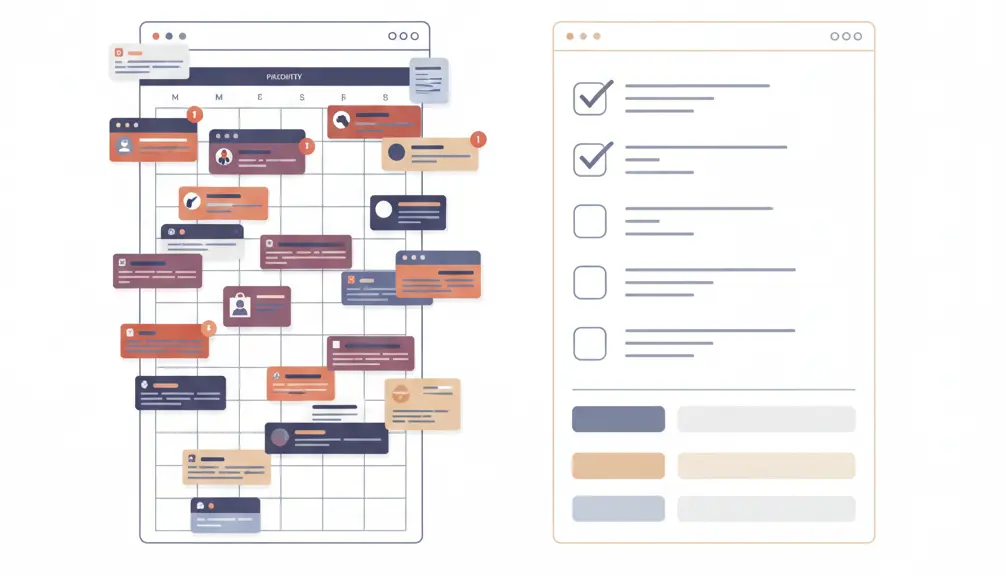
For years, I used Google Calendar as my task manager. Not just a little bit - completely. Client work, personal projects, admin, learning, “someday” ideas - everything lived as calendar tasks with reminders. On paper, it looked organized. In practice, it was chaos.
My phone buzzed all day with reminders for things that didn’t actually need to happen at that moment. Tasks I’d already postponed - sometimes repeatedly - kept resurfacing, creating urgency where none existed. By evening, I’d dismissed dozens of notifications and completed almost nothing meaningful.
The worst part wasn’t missed tasks. It was the constant, low-grade anxiety. Every notification felt like proof that I was behind. The system that was supposed to help me execute was actively making execution harder.
So I stopped. In one weekend, I completed a TickTick migration - pulled tasks out of my calendar, rebuilt my system around a real task manager, and changed how I think about commitments entirely.
This TickTick migration guide explains why Google Calendar’s Tasks feature fails at task management, why I chose TickTick, and the simple 5-list system that eliminated rescheduling, notification fatigue, and decision paralysis within weeks.
TL;DR
- Google Calendar Tasks ≠ Task Manager – Time-based reminders create false urgency and notification fatigue
- I replaced 200+ calendar tasks with TickTick’s 5-list system in one weekend
- Why TickTick – Unlimited subtasks, built-in tools, and constraints that prevent over-engineering
- Sparse dates + daily inbox processing eliminated 20-30 minutes/day of rescheduling overhead
- The backlog revelation – Most “tasks” were actually bookmarks that belonged in a monthly-reviewed doc
- Tool choice matters less than system – My failed Todoist attempt proved over-optimization kills productivity
Results after 3 weeks: 6-8 tasks/day completed (vs 2-3), 5 min/day on task management (vs 30+), zero notification anxiety.
Jump to:
- Why Calendar Tasks Fail
- Why TickTick
- The TickTick Migration System
- Migration Checklist
- Free Templates
Why Google Calendar Was Destroying My Productivity
Let’s be clear about something: Calendars are not task managers. They’re optimized for completely different use cases, and trying to force one to do the job of the other creates psychological and practical chaos.
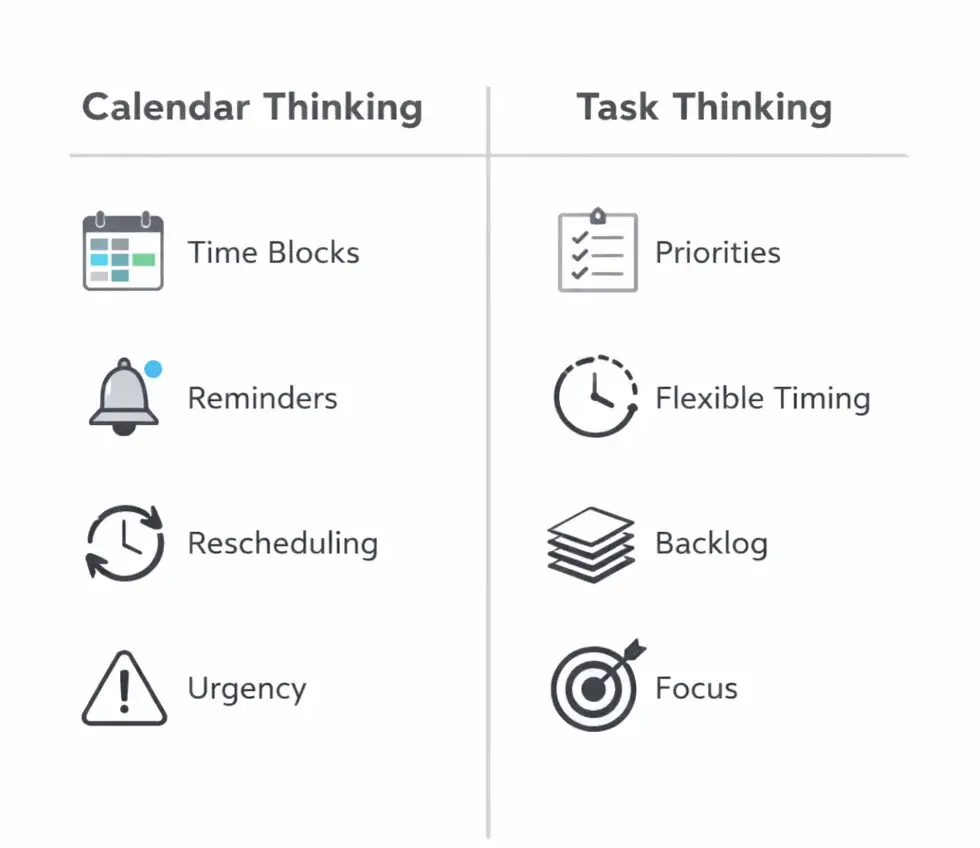
The Core Problem: Time-Based vs Action-Based Thinking
Google Calendar thinks in time blocks: “At 2pm on Tuesday, this thing happens.” Task managers think in priorities and context: “When I’m in client mode with 2 hours of focus time, these are the things that matter.” When you put a task in your calendar:
- It demands a specific time slot (even if the work is flexible)
- It triggers time-based reminders (creating false urgency)
- When you don’t do it, it becomes “overdue” immediately
- You have to manually reschedule it (creating maintenance overhead)
After 2-3 years of this pattern, here’s what my Google Calendar looked like:
Client Work:
- 47 “events” that were actually project tasks
- Mix of actual meetings and hoped-for work sessions
- No way to distinguish between “Client wants this Friday” and “I should probably do this someday”
Personal Projects:
- 89 “all-day events” for side projects
- Spanning months because I kept pushing them forward
- Ideas mixed with actual commitments
Life Admin:
- 64 recurring “tasks” for everything from “review stocks” to “call dentist”
- Half of them perpetually overdue
- Guilt every time I opened the calendar
The result? Notification fatigue, constant rescheduling, and zero clarity on what actually mattered on any given day.
The Symptoms I Was Living With
1. Everything Looked Equally Urgent
When your calendar shows 15 items for today, and 12 of them are from last week that you moved forward, how do you know what actually matters? You don’t. So you work on whatever seems easiest or most interesting, not what moves the needle.
2. No Context Separation
Client deadline for Friday? That’s sitting next to “learn new JavaScript framework” and “buy groceries.” Your brain has to constantly re-contextualize. Am I in client mode? Personal business mode? Life admin mode? The calendar doesn’t care.
3. The Rescheduling Tax
I was spending 20-30 minutes every morning moving tasks forward. Not planning, not prioritizing - just desperately trying to make today’s calendar look manageable by pushing things to tomorrow.
The result: notification fatigue, constant guilt, and zero clarity on what actually mattered.
Why I Needed a Real Task Manager
When I transitioned from a Backend Tech Lead role to solo consulting, my task management needs exploded:
Client work: Multiple active projects, each with different deadlines and priorities
Business development: Content creation, service positioning, outreach
Personal projects: Side products, blog, technical experiments
Life admin: The usual - finances, health, home, family
Cramming all of this into Google Calendar was like using a hammer to drive in screws. Technically possible, but exhausting and ineffective.
What I Actually Needed
After analyzing my workflow, I realized I needed:
1. Clear context separation – Show me client work when I’m in client mode. Show me personal projects when I have creative time. Show me life admin when it’s weekend catch-up time.
2. Frictionless capture – New task? Inbox. Done. Process later.
3. Flexible scheduling – Most work doesn’t need specific times. “This week” is fine. “When I have 2 hours of focus” is fine. “Someday” is fine. But “Tuesday at 3pm” is artificial pressure.
4. Backlog management – Projects and ideas I want to keep but aren’t ready to execute need to live somewhere that isn’t my daily view.
5. Mobile quick capture – When a client emails a request, I need to capture it in 5 seconds without context-switching.
Why I Chose TickTick
I evaluated several task managers: Todoist, TickTick, Microsoft To Do, Notion, and Asana.
Quick eliminations:
- Microsoft To Do: Too basic, weak filtering
- Notion: Too flexible (I’d spend more time building than using)
- Asana: Overkill for solo use, expensive
- Todoist: I’d tried it before (2020-2022) and over-engineered myself into abandonment
Why TickTick won:
- Constraints as features: Fewer customization options = less over-engineering temptation
- Built-in tools: Pomodoro, habits, calendar view (no integrations needed)
- Unlimited subtasks: Critical for multi-day client projects
- Simple enough to actually use: My Todoist failure taught me that infinite flexibility leads to analysis paralysis
The real insight from my Todoist experience: The tool is 20% of the solution. The system is 80%.
No amount of features will save you if you’re over-organizing instead of executing.
The TickTick Migration System That Actually Worked
Here’s the critical insight: Don’t just migrate - transform your relationship with tasks.
Dumping 200 calendar items into a new tool just recreates the same mess in a different interface. What you need is a systematic reset. This TickTick migration process works because it forces you to rethink how you organize tasks, not just move them.
The 6-Step TickTick Migration Process
I adapted this from several productivity frameworks, then ruthlessly simplified based on my own failed attempts. Total time investment: 2 hours spread across a weekend.
Step 0: Freeze the Calendar (5 minutes)
Before starting your TickTick migration:
- Stop adding tasks to Google Calendar immediately
- Leave only real appointments (meetings, calls, time blocks for deep work)
- Don’t clean old entries yet (resist the urge - it’s a time sink)
This is psychological: You’re drawing a line. “From this moment forward, different system.”
Step 1: Create Only 5 Lists (10 minutes)
In TickTick, create exactly these lists:
- Inbox – Default capture point for everything
- Work – Client – Paid client work
- Work – Personal – Your business, side projects, portfolio
- Personal – Life admin, errands, health, finances
- Reading / Planning – Courses, articles, learning, research
Why these five? Inbox captures everything first. Work – Client vs Work – Personal separates paid work from your own projects—crucial for consultants to switch contexts. Personal handles life admin. Reading / Planning keeps aspirational learning separate from execution. Resist adding more lists; tags handle categories later if needed.
Step 2: Fast Dump to Inbox (20 minutes)
Set a timer. Open Google Calendar and TickTick side-by-side. For every task-disguised-as-event in your calendar:
- Add it to TickTick Inbox
- NO dates
- NO priorities
- NO categories
- NO subtasks
- Just the task name
Examples: “Client website redesign”, “Side project bug fix”, “Review stocks”. This isn’t organization—it’s extraction. Get it out of your calendar and into a system designed for tasks. You’ll organize in the next step.
Stop when your head feels empty, not when it’s perfect. If you’re burned out after 20 minutes, that’s fine. You can always add more later.
Step 3: Single Sorting Pass (10 minutes)
Now process Inbox once. For each task, ask one question: “Who is this for?”
- Client work someone is paying for? → Work – Client
- Your own business/projects? → Work – Personal
- Life/admin? → Personal
- Learning/reading? → Reading / Planning
That’s it. Move the task. Next task. No dates yet. No priorities. No overthinking. Goal: Empty Inbox in 10 minutes. If you’re stuck on a task for more than 10 seconds, just pick something and move on.
Step 4: Add Dates Sparingly (10 minutes)
Most tasks should not have dates. Only add due dates when: someone else expects it by a specific date, there’s a real external deadline, or a time-sensitive window. Everything else stays undated. Artificial deadlines create artificial pressure. Undated tasks sit in their list until you have appropriate context. Set up recurring tasks for fixed schedules (weekly standups, monthly invoicing).
Step 5: Start Using Daily (2-3 minutes per day)
Morning: Open Today view, pick 6-8 tasks max, work top to bottom. During the day: New task? Add to Inbox (5 seconds via mobile app). End of day: Check off completed tasks, quick Inbox sort if 3+ items accumulated. That’s it. No fancy reviews. Just: capture, sort, execute.
Step 6: Add Filters After Friction Appears (Week 2+)
Don’t add tags or smart lists yet. Use the basic system for 3-4 days first. Let friction emerge naturally:
- “I wish I could see only deep work tasks”
- “Too many small tasks mixed with big projects”
- “Want to filter by specific client”
Then add what you need:
- Tags: @deep, @light, @errand, @client-name
- Smart lists: “Deep Work,” “Quick Wins,” “This Week – Work”
But not before. Premature optimization killed my Todoist setup. Don’t let it kill yours.
Three Weeks In: What Actually Changed
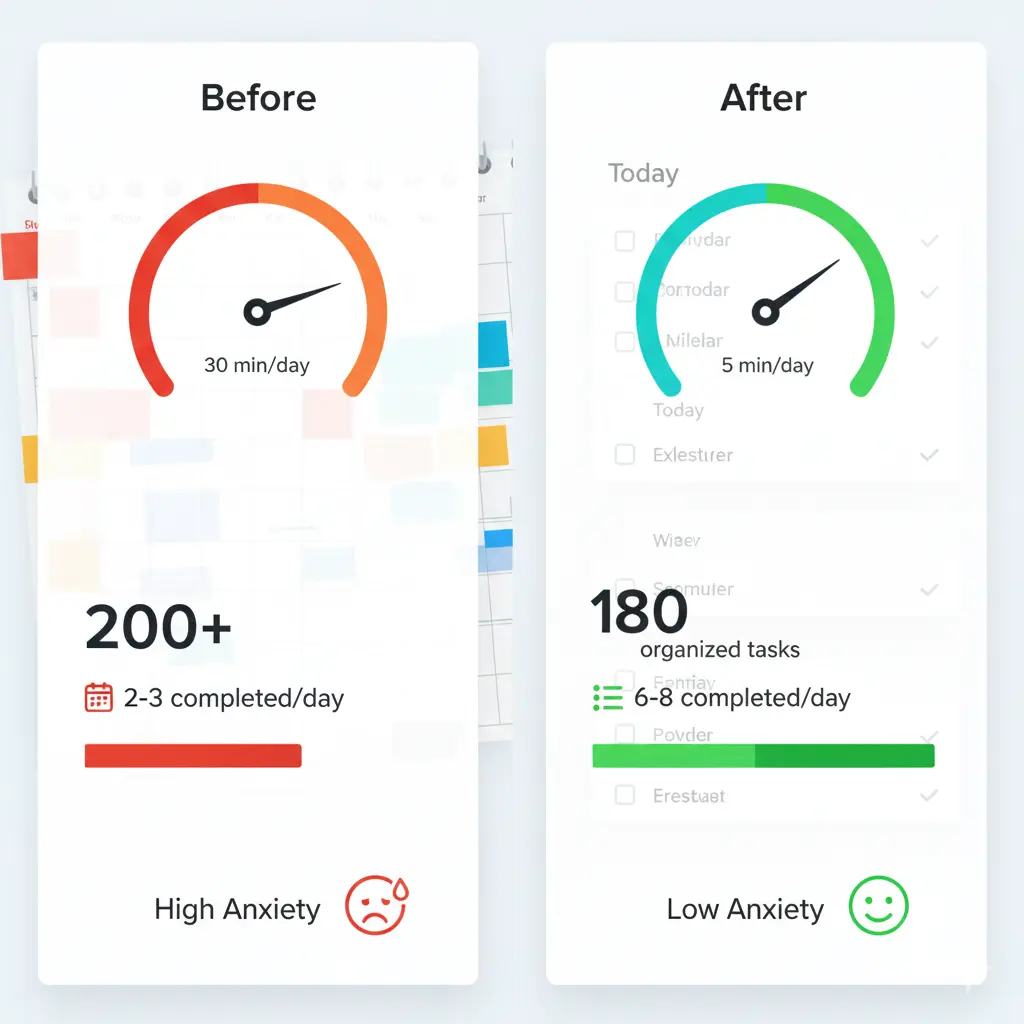
Let me be honest about results, both quantitative and qualitative.
The Numbers
Before (Google Calendar):
- ~200 task-events scattered across multiple calendars
- Average daily completion: Maybe 2-3 real tasks (rest were rescheduling)
- Time spent on task management: 30+ minutes/day (mostly moving things forward)
- Notification anxiety: Constant
After (TickTick, Week 3):
- Total tasks: ~180 (after ruthless pruning)
- Work – Client: 15
- Work – Personal: 33
- Personal: 13
- Reading / Planning: 40
- Someday: 20 (in external backlog document)
- Average daily completion: 6-8 tasks
- Time spent on task management: 5 minutes/day
- Notification anxiety: Gone (only set reminders on critical items)
The Psychological Shift
Empty Inbox Satisfaction: Every evening when Inbox hits zero, there’s this small dopamine hit. It’s like a clean desk at end of day. I know everything is categorized and nothing is lost.
Reduced Anxiety: The biggest change isn’t productivity - it’s mental space. I’m not constantly wondering “What am I forgetting?” The system holds it.
Clear Context Switching: When I’m in client delivery mode, I open Work – Client and only see what matters for clients. When I’m in business development mode, I open Work – Personal. No cognitive overhead deciding what’s relevant.
Guilt-Free Incompletion: Some days I only finish 3 of my 8 picked tasks. That’s fine. They roll forward. I don’t have to manually reschedule them and feel like a failure.
The Biggest Surprise: The Backlog Revelation
Here’s what I didn’t expect: Most of my tasks didn’t need to be tasks at all.
When I migrated, I quickly hit TickTick’s task limit. My Reading / Planning list exploded to 92 items like “Try lmstudio.ai” and “Professional TypeScript Training course”. These weren’t tasks—they were bookmarks. Aspirations. Someday-maybes.
Keeping them in my daily task system was like keeping your entire bookmarks folder open in browser tabs. Constant noise, zero signal.
The solution: I created a Google Doc called “Exploration Backlog” (Tools to Try, Courses, Content Ideas, Project Ideas, Reading List) and one recurring TickTick task: “Monthly backlog review – every first Sunday at 11am”. Once a month, I scan it. If something becomes urgent, I move it to TickTick with a real date. Otherwise, it stays dormant.
The revelation: A task manager should only hold committed actions, not possible futures.
Handling Edge Cases
A few patterns came up that needed specific solutions:
Multi-Day Client Projects
For projects spanning several days with distinct phases, I use subtasks:
Main task: Client website UX improvements (Due: Dec 27)
List: Work – Client
Subtasks:
- Review current search/filter issues
- Design improved filter UI
- Implement changes
- Test on mobile
- Deploy to production
The main task stays visible in Today view until Dec 27. Each day, I check off subtasks. Progress shows: “(2/5)” → “(3/5)” → satisfying completion.
Weekly Recurring Work (Mon-Wed Pattern)
Some work happens Mon-Wed every week but isn’t the same each day. I tried several approaches:
What works: Single task with day-specific subtasks:
Task: Weekly client status updates
Due: Every Monday
Repeat: Weekly
List: Work – Client
Subtasks:
- Monday: Gather metrics and data
- Tuesday: Write status report draft
- Wednesday: Review, finalize, and send
It shows as “overdue” Tuesday-Wednesday, but that’s fine. Progress is clear: (1/3) → (2/3) → (3/3). Wednesday evening, check off the main task. Next Monday, fresh instance appears with reset subtasks.
Monthly/Yearly Tasks
Things like “Review investment portfolio” (monthly) or “Renew domain registration” (yearly) go in the appropriate list with recurrence set:
Task: Review stocks and rebalance
List: Personal
Due: 1st of every month at 9am
Repeat: Monthly (from due date)
Reminder: On due date
These only appear in Today view when due. They don’t clutter your lists between occurrences.
Lessons Learned & Mistakes to Avoid
What I’d Do Differently
1. Upgrade to Premium Immediately – I wasted a weekend hitting the task limit. Upgrade on day one if you’re serious.
2. Create the Backlog System from Day One – Don’t let aspirational tasks pollute your action system. External doc + monthly review from the start.
3. Be More Ruthless with Deletion – I kept tasks like “Learn Rust” because “I might do them someday.” Three weeks later, untouched. They’re mental clutter. Delete faster.
Common Traps to Avoid
-
❌ Don’t recreate your old Todoist hierarchy – Nested projects feel organized but are over-engineering. Keep lists flat. Use tags if you need categories.
-
❌ Don’t add dates to everything – If everything is “urgent,” nothing is. Dates should be rare.
-
❌ Don’t create 20 lists – You’ll never maintain them. Five is plenty. Use tags or task name prefixes instead.
-
❌ Don’t tag everything immediately – Tags are for filtering once you know what filters you need. Premature optimization kills productivity.
Is This Migration Worth It?
Honest answer: Depends on your current pain level.
You should migrate if:
- ✅ You’re constantly rescheduling things because your calendar is overloaded
- ✅ You have multiple contexts (client work, personal projects, life admin) bleeding together
- ✅ You’re experiencing notification fatigue and guilt
- ✅ You’re a solo consultant or freelancer juggling multiple projects
You probably don’t need this if:
- ❌ Your current system works fine and you’re happy
- ❌ You have <20 active tasks total
- ❌ Your work is mostly reactive (tickets, support) with little planning needed
- ❌ You’re looking for productivity porn instead of actual improvement
This won’t solve:
- 🚫 Lack of discipline (you still need to execute)
- 🚫 Unclear priorities (garbage in, garbage out)
- 🚫 Saying yes to too many commitments
- 🚫 Procrastination on hard tasks
A task manager makes committed work visible and organized. It doesn’t magically create time or motivation.
Getting Started: Your Weekend TickTick Migration
Ready to migrate? The complete step-by-step guide includes the exact weekend timeline (4.5 hours total), daily routines, troubleshooting, and all templates:
→ Complete TickTick Migration Guide
Free. No signup. Just use it.
Resources & Templates
📋 Complete Migration Guide
→ TickTick Migration Guide - Full Step-by-Step
Everything you need in one place: exact timeline (down to the minute), daily routines, troubleshooting, success criteria, advanced topics (multi-day projects, recurring tasks, mobile workflow), and all templates (5-list setup, backlog, monthly review).
Quick Links (GitHub Gists)
5-List System Setup
Why these 5 lists, what goes where, how to sort tasks.
Exploration Backlog Template
Keep “someday” items out of your active task list.
Monthly Review Task
Recurring task setup for reviewing your backlog.
🚀 Implementation Guide
Recommended order:
- Start with Migration Checklist → Complete the weekend TickTick migration
- Use 5-List System → Create lists, start sorting
- Set up Backlog Template → Move aspirational items out
- Add Monthly Review → Ensure you maintain the system
Time investment: One weekend setup + 10 min/month maintenance = Permanent sanity.
Questions? Comment on any Gist or reach out via LinkedIn.
Final Thoughts
Three weeks ago, I had 200+ calendar items creating constant guilt. Now I have ~180 organized tasks, clear separation between contexts, and actual peace of mind.
The TickTick migration took one weekend. The psychological shift took a week. The routine is now automatic.
Your calendar should hold appointments and time blocks. Things that happen at specific times.
Your task manager should hold commitments. Things you need to do, with context and priority.
Mixing them was my 2-3 year mistake. Separating them was my weekend fix.
If you’re drowning in calendar task notifications, feeling constant guilt about rescheduling, and struggling to know what actually matters on any given day - try this TickTick migration system.
Stop organizing. Start executing.
What’s Next?
Try the system:
- Follow the complete migration guide with step-by-step instructions
- Block out a weekend
- Report back with results
Questions or stuck? Reach out via LinkedIn or use the contact form.
Kashif Aziz · AI Codebase Audit
Need help fixing or hardening this kind of code?
I refactor messy or AI-generated code into maintainable, production-ready systems.