TickTick Migration Guide: From Google Calendar to Organized in One Weekend
Complete step-by-step guide to migrating from Google Calendar Tasks to TickTick. Includes timeline, templates, troubleshooting, and the 5-list system that works.
TickTick Migration Guide
Escape Google Calendar task hell in one weekend.
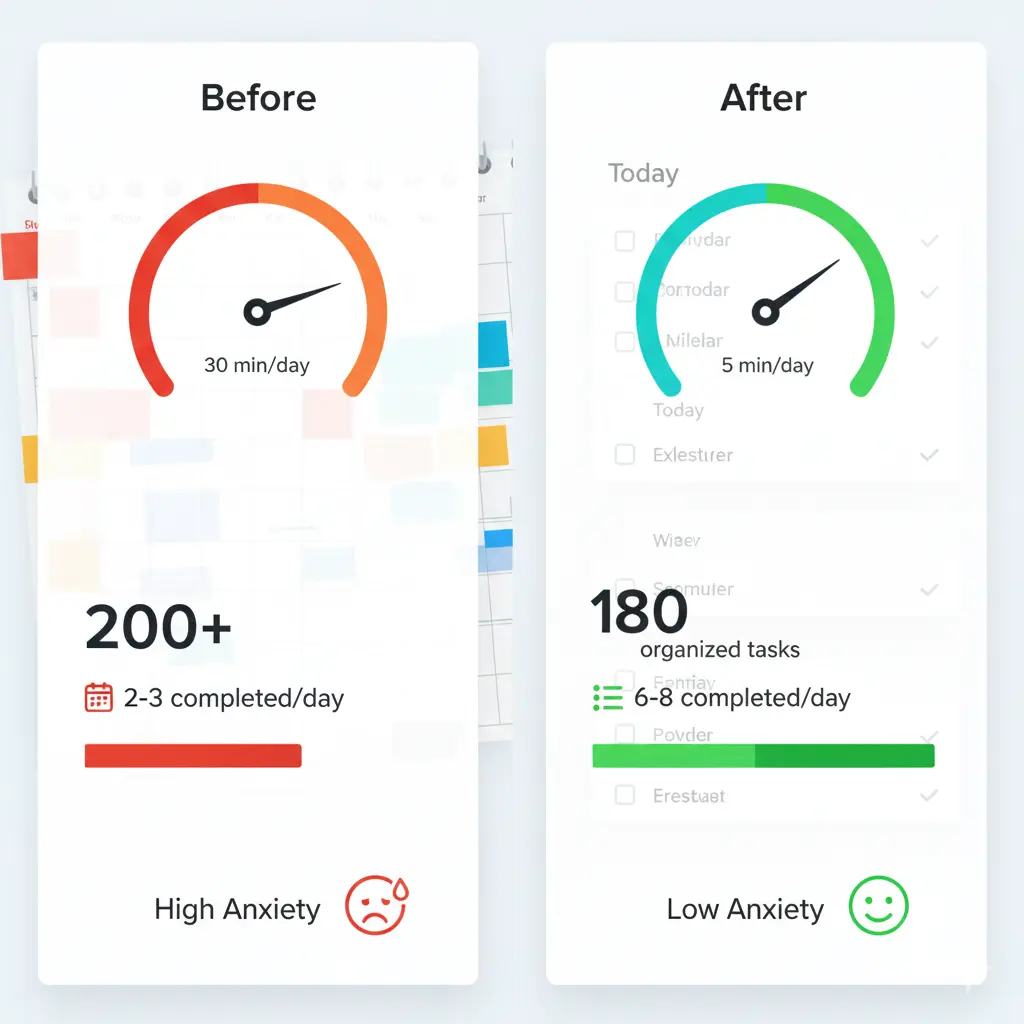
This is the complete system I used to migrate 200+ tasks from Google Calendar to TickTick, cut task management time from 30 min/day to 5 min/day, and eliminate notification fatigue.
Everything below is free. Use it, fork it, adapt it.
Table of Contents
Quick Navigation:
- Quick Overview – Time, tools, outcomes
- The 5-List System – Understand before you start
- Migration Timeline – Step-by-step Saturday-Sunday
- Week 1-2 Usage – Build the daily habit
- Success Criteria – Know if it’s working
- Troubleshooting – Common issues solved
- Templates – Free GitHub resources
- Advanced Topics – Multi-day projects, recurring tasks, mobile
Estimated time: 4.5 hours total | Difficulty: Easy
Quick Overview
Time needed: One weekend (4.5 hours total)
What you’ll build:
- 5-list system for context separation
- Daily inbox workflow (5 min/day)
- Monthly backlog review system
- Zero notification anxiety
Tools needed:
- TickTick account (Premium recommended to avoid task limits)
- Google Doc or markdown file (for backlog)
- Your current Google Calendar
Before You Start: Prerequisites
✅ Must have:
- Google Calendar with tasks (the thing you’re escaping)
- 4.5 hours across one weekend
- Willingness to delete/archive old tasks ruthlessly
⚠️ Warning signs this guide is for you:
- Spending 20+ min/day rescheduling tasks
- 50+ “events” in calendar that are actually tasks
- Notification fatigue (swiping away reminders all day)
- Using calendar because you don’t know what else to use
❌ This guide is NOT for you if:
- Your current system works fine
- You have <20 active tasks total
- You’re looking for productivity porn (not execution)
Still here? Good. Let’s fix your system.
⚡ Time-Saving Shortcuts
Don’t have a full weekend? Here’s the minimal viable migration:
Option A: 90-Minute Quick Start (Saturday only)
- Hour 1: Setup + Brain dump to Inbox
- 30 min: Sort Inbox to 5 lists, add critical deadlines only
- Skip: Backlog system (do it later), Premium upgrade (start with free tier)
- Result: Functional system, rough around edges
Option B: Phased Migration (Split across 2 weekends)
- Weekend 1: Setup, dump, sort (Saturday) + Use for a week
- Weekend 2: Backlog system + cleanup (Sunday)
- Result: Less overwhelming, test before committing
Recommended: Still do the full weekend if possible. Future-you will thank you.
The 5-List System
Before you migrate, understand where tasks will live.
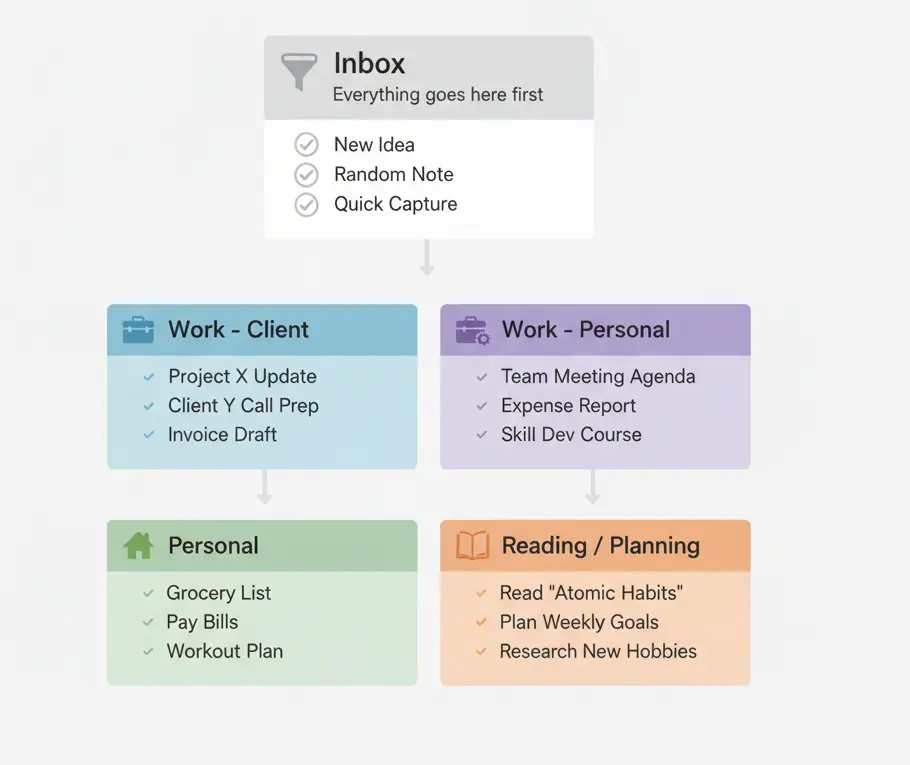
The Decision Tree
When processing a task, ask: “Who is this for?”
Is someone paying you for this?
├─ YES → Work – Client
└─ NO → Is this for your business/projects?
    ├─ YES → Work – Personal
    └─ NO → Is this life admin/errands?
        ├─ YES → Personal
        └─ NO → Is this active learning (doing NOW)?
            ├─ YES → Reading / Planning
            └─ NO → Move to Backlog Doc (not TickTick)
Create exactly these 5 lists in TickTick:
1. Inbox 📥
Purpose: Default capture point
Rule: Everything goes here first, no thinking required
Example: “Client email”, “Blog idea”, “Fix bug”, “Buy groceries”
2. Work – Client 💼
Purpose: Paid client work
Rule: Billable tasks, deliverables with deadlines
Example: “Finish client website UX”, “Client standup Friday”
3. Work – Personal 🚀
Purpose: Your business, side projects, portfolio
Rule: Non-billable but important for your business
Example: “Write LinkedIn post”, “Update portfolio”, “Learn new framework”
4. Personal 🏠
Purpose: Life admin, errands, health, finances, family
Rule: Everything outside of work
Example: “Doctor appointment”, “Pay bills”, “Call mom”, “Gym”
5. Reading / Planning 📚
Purpose: Active learning only
Rule: Courses in progress, articles you’re reading THIS WEEK
Example: “Complete module 3 of X course”, “Read Y article”
NOT: “Someday learn Rust” (that goes in Backlog Doc)
Why not more lists?
Marketing, Admin, Finance, Content can be handled with tags later if needed. Most people never need them.
The trap: More lists = more decisions = analysis paralysis. Start simple.
Migration Weekend Timeline
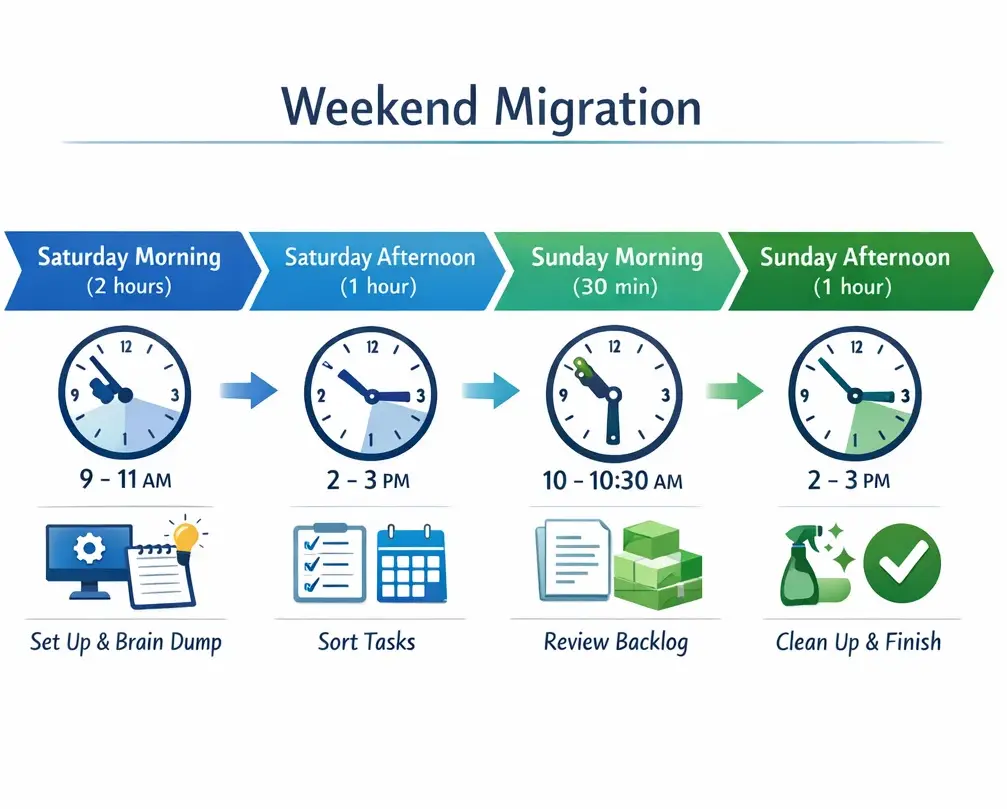
Your progress tracker:
☐ Saturday Morning (2 hours) – Setup & Brain Dump
☐ Saturday Afternoon (1 hour) – Sort & Date
☐ Sunday Morning (30 min) – Backlog System
☐ Sunday Afternoon (1 hour) – Final Cleanup
☐ Monday & Week 1 (5 min/day) – Build Habit
☐ Week 2 (5 min/day) – Add What You Need
Tip: Copy this checklist. Check boxes as you complete each phase. Accountability helps.
Saturday Morning (2 hours)
Hour 1: Setup (30 minutes)
1. Choose TickTick (5 min)
- Go to ticktick.com
- Create account
- Install desktop/web version
- Install mobile app (iOS or Android)
2. Create the 5 lists (10 min)
- Inbox
- Work – Client
- Work – Personal
- Personal
- Reading / Planning
3. Freeze your calendar (15 min)
- Stop adding tasks to Google Calendar NOW
- Leave only real appointments (meetings, calls)
- Don’t clean old entries yet (resist the urge—it’s a time sink)
This is psychological: You’re drawing a line. “From this moment forward, different system.”
Hour 2: Brain Dump (40 minutes)
Fast dump to Inbox:
- Open Google Calendar and TickTick side-by-side
- For every task-event in your calendar:
- Add it to TickTick Inbox
- NO dates
- NO priorities
- NO categories
- Just the task name
Examples:
- “Client feature request”
- “Blog post about AI”
- “Fix production bug”
- “Review quarterly finances”
- “Read HuggingFace course”
Stop when your head feels empty, not when it’s perfect. Burnout after 30 minutes? Fine. Add more later.
Take a 20-minute break. Seriously, step away.
Saturday Afternoon (1 hour)
Sort and Date (40 minutes)
1. Single sorting pass (20 min)
Process Inbox one task at a time. Ask: “Who is this for?”
- Client work someone is paying for? → Work – Client
- Your own business/projects? → Work – Personal
- Life/admin? → Personal
- Learning/reading? → Reading / Planning
Move the task. Next task. No overthinking.
Goal: Empty Inbox in 20 minutes. If stuck on a task for >10 seconds, just pick something.
2. Add dates sparingly (20 min)
CRITICAL: Most tasks should NOT have dates.
Only add due dates when:
- Someone else expects it by a specific date (“Client wants feature by Friday”)
- Real external deadline (“Tax filing due April 15”)
- Time-sensitive window (“Register before early bird ends”)
Scan Work – Client: Add dates to real deadlines only
Scan Personal: Add dates to time-sensitive only
Set up 3-5 recurring tasks: Weekly standups, monthly invoicing
Everything else: Leave undated
Why? Artificial deadlines create artificial pressure. Undated tasks sit in their list. Pull from backlog when you have appropriate time/context.
3. Upgrade to Premium (5 min)
Don’t waste time with free tier limits. Premium unlocks smart lists (needed in Week 2) and unlimited tasks.
4. Mobile setup (15 min)
- Test quick capture (add a dummy task)
- Add widget to home screen
- Set notification preferences (MINIMAL - only critical deadlines)
Sunday Morning (30 minutes)
Create Backlog System
1. Create backlog document (20 min)
Create a simple Google Doc or markdown file to store aspirational items (tools to try, courses, reading list, project ideas).
Fill it in with aspirational items from your TickTick lists (especially Reading / Planning).
Move these items OUT of TickTick into this doc.
Why? A task manager should hold committed actions, not possible futures.
2. Set up monthly review task (10 min)
In TickTick, create a recurring monthly task to review your backlog and move actionable items back to TickTick when they become relevant.
Sunday Afternoon (1 hour)
Final Cleanup
1. Prune backlog items (30 min)
- Go through Reading / Planning list
- Move aspirational items to backlog doc
- Keep only active learning (courses in progress)
- Target: Under 30 items in this list
2. Review all lists (15 min)
- Work – Client: Clean and focused?
- Work – Personal: Actionable?
- Personal: Time-sensitive items dated?
- Reading / Planning: Only active learning?
3. Plan Monday morning (15 min)
- Open Today view
- What will show up tomorrow?
- Pick your top 3 tasks for Monday
- Feel ready
Monday Morning: Start Using
Morning routine (3 min)
- Open TickTick → Today view
- Review what’s due today
- Pick 6-8 tasks max
- Start working
During the day:
- Capture new tasks to Inbox immediately
- Don’t stop to organize them yet
End of day (2 min)
- Check off completed tasks
- Quick Inbox sort if 3+ items
- Pat yourself on the back
Week 1: Build the Habit
Daily (5 min total):
- Morning: Check Today, pick tasks
- During: Capture to Inbox
- Evening: Sort Inbox, check off done
DON’T add yet:
- Tags
- Filters
- Smart lists
- Complex hierarchies
Just use the basic system for 7 days.
Week 2: Add What You Need
After 5-7 days of usage, assess:
- Feeling friction? → Add tags (
@deep,@light,@errand) - Want filtered views? → Create 1-2 smart lists
- Need client separation? → Add
@client-nametags
Only add what you actually need, not what seems cool.
Success Criteria
After 2 weeks, you should have:
✅ Empty Inbox daily
✅ 6-8 tasks completed per day
✅ Clear separation between work contexts
✅ 5 minutes/day on task management (not 30+)
✅ Reduced anxiety about “what am I forgetting?”
✅ Backlog system working (monthly review set up)
If you hit these, the migration worked. Keep going.
What Success Looks Like
Before (Week 0):
📅 Google Calendar: 200+ task-events
⏰ Notifications: Constant buzzing all day
⏱️ Daily task management: 30+ minutes rescheduling
😰 Anxiety level: High (always behind)
✅ Tasks completed: 2-3/day
After (Week 2):
📅 Google Calendar: Clean (only appointments)
⏰ Notifications: Minimal (only critical deadlines)
⏱️ Daily task management: 5 minutes
😌 Anxiety level: Low (clear system)
✅ Tasks completed: 6-8/day
📊 Inbox: Empty daily
🎯 Clarity: Know exactly what matters
The difference: Same amount of work. Way less mental overhead.
Troubleshooting
“I hit the 99-task limit”
→ Upgrade to Premium or move more items to backlog doc
“Today view shows 20+ tasks”
→ You’re adding too many dates. Most tasks should be undated.
“I keep forgetting to check TickTick”
→ Set a daily reminder at your usual work start time
“Everything feels urgent”
→ Remove dates from flexible tasks. Only real deadlines get dates.
“I want to reorganize everything”
→ Stop. Use it as-is for 2 weeks first. Then optimize.
Common Mistakes (And How to Avoid Them)
❌ Mistake 1: Adding dates to everything
”If every task has a due date, I’ll know what to do each day”
Reality: You’ll spend all morning rescheduling. Only real deadlines get dates.
❌ Mistake 2: Creating 15 lists on Day 1
”I need separate lists for Marketing, Sales, Admin, Content…”
Reality: You’ll never maintain them. Start with 5. Add more only if you feel friction.
❌ Mistake 3: Keeping aspirational learning in TickTick
”I want to see all my courses/books/articles so I remember to do them”
Reality: They clutter your active view. Move to Backlog Doc, review monthly.
❌ Mistake 4: Skipping the Backlog system
”I don’t have time for this backlog doc thing”
Reality: You’ll hit the 99-task limit and spend an hour cleaning up. Do it Sunday.
❌ Mistake 5: Not upgrading to Premium
”I’ll try free tier first, upgrade if needed”
Reality: You’ll hit limits, get frustrated, abandon. Just upgrade to avoid hitting limits during migration.
❌ Mistake 6: Adding tags/filters on Day 1
”Let me set up all my tags and smart lists before I start”
Reality: You’re over-engineering. Use the basic system for 7 days first.
❌ Mistake 7: Migrating without freezing Calendar
”I’ll migrate but still use Calendar for some things”
Reality: You’ll split brain between two systems and fail at both. Pick one. Commit.
Frequently Asked Questions
Q: Do I need Premium right away or can I start free?
A: Start free if you want, but you’ll likely hit task limits during migration. Save yourself the frustration—upgrade on Saturday afternoon (step included in timeline).
Q: What if I have 500+ tasks in my calendar, not 200?
A: Same process, but be more ruthless. You won’t do 80% of them. Move aspirational items directly to Backlog Doc, don’t even add to TickTick.
Q: Can I use this system for team projects?
A: The 5-list system is for personal task management. Teams need different tools (Asana, Linear, Jira). But individuals on teams can use this for their personal workload.
Q: I tried TickTick before and abandoned it. Will this be different?
A: Probably failed due to over-organization (too many lists/tags/projects). This system’s constraints prevent that. Give it 2 weeks following the guide exactly.
Q: Why TickTick and not Todoist/Notion/Other?
A: TickTick has unlimited subtasks and built-in features (Pomodoro, habits). But the SYSTEM matters more than the tool. This guide works in Todoist too.
Q: What about email/Slack tasks?
A: When email/Slack mentions a task, immediately add to TickTick Inbox (5 seconds). Don’t use email as task manager. Archive/delete after capturing.
Q: How do I handle tasks that are both client work AND learning?
A: If it’s billable → Work – Client. If it’s for skill-building → Reading / Planning. Pick the primary purpose.
Q: I work across multiple timezones. Any tips?
A: Set task due dates in your primary timezone. Use TickTick’s calendar view to see tasks alongside appointments.
Q: Can I share tasks with my spouse/partner?
A: TickTick Premium supports shared lists. Create a 6th list “Shared – Family” for household tasks.
Templates & Resources
All templates are free and open-source on GitHub.
5-List System Setup Guide
Detailed explanation of the 5 lists, what goes where, why not more lists.
Migration Weekend Checklist
Complete weekend migration checklist with timeline and step-by-step tasks. See the Print-Friendly Weekend Checklist section above.
Monthly Review Task Setup
Exact task configuration for reviewing your backlog monthly.
Multi-Day Project Template
Template for handling multi-day client projects with subtasks and progress tracking. See the Multi-Day Projects section in Advanced Topics above.
Advanced Topics
Multi-Day Projects
Use subtasks for projects spanning several days: ``` Main task: Client dashboard redesign (Due: Friday) List: Work – Client
Subtasks:
- Design mockups
- Build components
- Testing
- Deploy ```
Progress shows: (1/4) → (2/4) → (3/4) → Done
Weekly Recurring Work (Mon-Wed Pattern)
For work that happens Mon-Wed every week: ``` Task: Weekly client status updates Due: Every Monday Repeat: Weekly List: Work – Client
Subtasks:
- Monday: Gather metrics
- Tuesday: Write draft
- Wednesday: Finalize and send ```
Mobile Workflow
Quick capture (5 seconds):
- Open app → + button
- Type task
- Hit enter → goes to Inbox
Widget: Add TickTick widget to home screen for Today view at a glance.
Don’t do on mobile: Heavy organization, planning, system changes. That’s desktop work.
📋 Print-Friendly Weekend Checklist
Copy-paste or print this for your weekend migration:
SATURDAY MORNING
- Create TickTick account + install apps (5 min)
- Create 5 lists: Inbox, Work-Client, Work-Personal, Personal, Reading/Planning (10 min)
- Freeze Google Calendar (stop adding tasks) (5 min)
- Brain dump calendar tasks to TickTick Inbox (30-40 min)
- Take 20-minute break
SATURDAY AFTERNOON
- Sort Inbox by asking “Who is this for?” (20 min)
- Add dates to real deadlines only (20 min)
- Upgrade to Premium (5 min)
- Setup mobile app + widget (15 min)
SUNDAY MORNING
- Create backlog document (Google Doc or markdown) (20 min)
- Move aspirational items from TickTick to doc
- Create monthly review recurring task (10 min)
SUNDAY AFTERNOON
- Prune Reading/Planning list to <30 items (30 min)
- Review all lists for cleanliness (15 min)
- Plan Monday morning (pick top 3 tasks) (15 min)
MONDAY & WEEK 1
- Daily: Morning (check Today), During (capture to Inbox), Evening (sort Inbox)
- DON’T add tags/filters yet
WEEK 2
- Add tags only if you feel friction
- Create 1-2 smart lists if needed
SUCCESS CHECK (End of Week 2)
- Inbox empty daily?
- 6-8 tasks completed/day?
- 5 min/day on task management?
- Reduced anxiety?
All boxes checked? You did it. Keep going.
What’s Next?
✅ Successfully migrated? Share this guide and help others escape calendar chaos:
- Share on X (Twitter): Share on X
- Share on Reddit: Share on Reddit (Opens Reddit’s submission page with URL and title pre-filled)
📖 Read the full story: Why I migrated from Google Calendar to TickTick – The complete backstory of why I made this migration and the lessons learned.
❓ Questions or stuck?
- Get in touch via contact page – I respond to all messages
- Check TickTick’s official docs for app-specific questions
💼 Need help with your MVP or productivity systems?
I help startups ship faster and consultants work smarter. Get in touch.
Created by Kashif Aziz – Software consultant with 25+ years building software. Recently escaped task management hell. You can too.